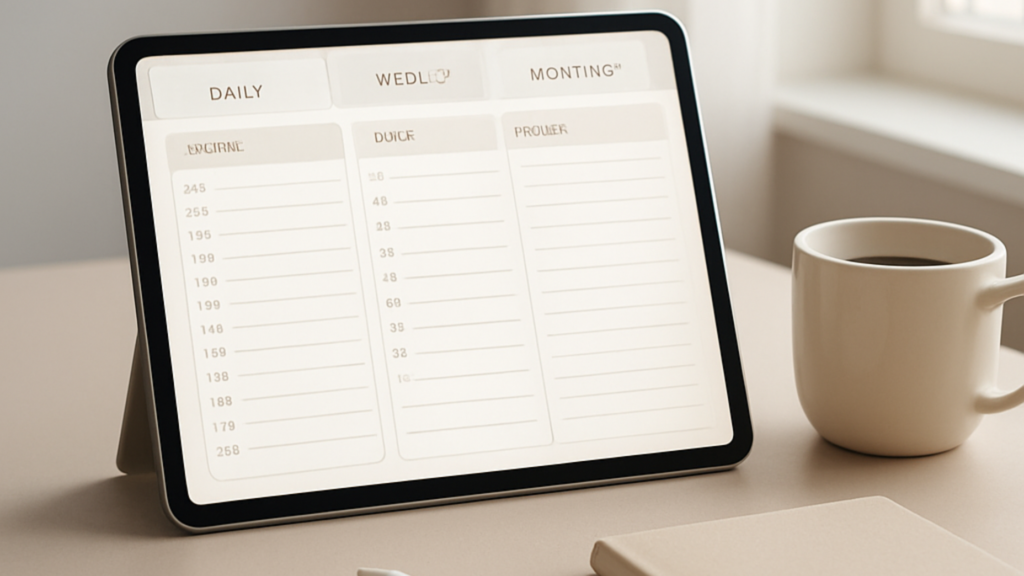
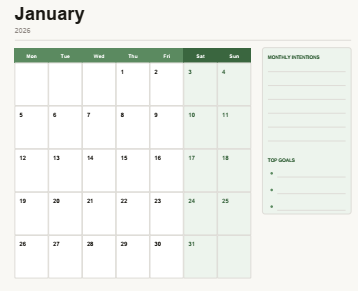
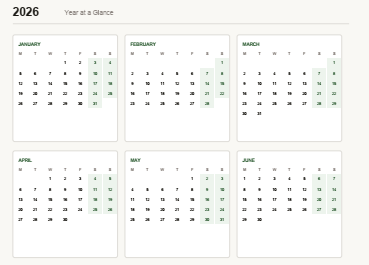
Choosing the right digital planner can transform how you organize your life. With countless options flooding app stores and online marketplaces, finding the perfect fit feels overwhelming.
This comprehensive guide cuts through the noise. We’ve tested and reviewed the top digital planners available today.
You’ll discover detailed comparisons of features, pricing, and real-world performance. Each recommendation includes honest pros and cons to help you make an informed decision.
- Our Top Pick: Notability – Best Overall Digital Planner
- What Are Digital Planners and Why Use Them?
- How to Choose the Right Digital Planner
- Best Digital Planners for iPad and Apple Pencil
- Best Cross-Platform Digital Planners
- Best Digital Planners for Android
- Best Free Digital Planners
- Best Digital Planners for Productivity
- Digital Planner Comparison Table
- Digital Planner Templates and Customization
- Best Digital Planners by Use Case
- Digital Planners vs Paper Planners
- Getting Started with Digital Planning
- Digital Planning Tips and Productivity Hacks
- Common Digital Planning Mistakes to Avoid
- Frequently Asked Questions About Digital Planners
- Can I use digital planners without a stylus or Apple Pencil?
- Do I need to buy new digital planner templates every year?
- Can I share my digital planner with family or team members?
- What happens to my planning data if I stop paying for a subscription?
- Can digital planners work offline without internet connection?
- How do I transition from paper planner to digital without losing information?
- Are digital planners secure and private?
- Can I print pages from my digital planner?
- Final Recommendations: Choosing Your Perfect Digital Planner

Whether you’re managing work projects, planning your day, or organizing your entire life, this guide helps you find the best digital planner for your specific needs.
Our Top Pick: Notability – Best Overall Digital Planner
After extensive testing, Notability stands out as the best digital planner for most users. This powerful app combines intuitive design with professional-grade features.

Why Notability Wins
Notability delivers seamless handwriting recognition, robust organization tools, and flawless sync across devices. The app supports both iPad and iPhone, making your planning accessible everywhere.
4.7
Overall Rating
Ease of Use
4.8
Features
4.7
Value
4.5
Design
4.7
Pros
- Exceptional handwriting recognition with Apple Pencil
- Audio recording syncs with written notes
- iCloud sync works flawlessly across devices
- Extensive customization options for layouts
- PDF annotation and markup tools included
Cons
- iOS and Mac only – no Android or Windows support
- Subscription required for full feature access
- Learning curve for advanced features
Pricing: Free version available with limited features. Premium subscription costs $14.99 annually or $2.99 monthly. One-time purchase option available for $9.99 with fewer features than subscription.
Best for: iPad users who want a versatile tool combining note-taking, planning, and organization. Ideal for students, professionals, and anyone seeking a paper planner replacement.
What Are Digital Planners and Why Use Them?
Digital planners are electronic versions of traditional paper planners. These tools help you organize tasks, track goals, manage calendars, and plan your day using smartphones, tablets, or computers.
The shift from paper to digital planning offers significant advantages. You gain access to your planner from any device, search through months of notes instantly, and sync everything across your phone and computer.
Key Benefits of Digital Planning
- Access your planner from anywhere with cloud sync
- Search through all your notes and tasks instantly
- Customize layouts and templates to fit your needs
- Never lose your data with automatic backups
- Reduce paper waste and physical clutter
- Integrate with calendars and productivity tools
Types of Digital Planners
- Standalone apps designed specifically for planning
- PDF templates used in note-taking apps
- All-in-one productivity platforms with planning features
- Subscription-based planning systems with templates
- Simple calendar apps with task management
- Project management tools adapted for personal use
Modern digital planners support handwriting with styluses like Apple Pencil, typing, voice notes, and even photo attachments. This flexibility helps you capture information however works best for you in the moment.

The best digital planners combine the familiar feel of paper planning with powerful digital features. You get the satisfaction of writing by hand while enjoying search, backup, and organization tools impossible with physical planners.
How to Choose the Right Digital Planner
Selecting the perfect digital planner depends on your specific needs and workflow. Consider these essential factors before making your decision.
Device Compatibility
Start by checking which devices you’ll use for planning. Some apps work exclusively on iOS, while others support Android, Windows, or web browsers.
- iPad and iPhone users have the widest selection of premium planning apps
- Android users should verify app availability on Google Play before committing
- Cross-platform users need apps with reliable sync across different operating systems
- Desktop users should confirm whether apps offer web or desktop versions
Planning Style and Layout
Your preferred planning method influences which planner works best. Different apps excel at different organizational approaches.
| Planning Style | Best Features to Look For | Recommended Apps |
| Daily Planning | Hourly schedules, time blocking, daily task lists | Notability, GoodNotes, Daily Planner |
| Weekly Overview | Week-at-a-glance layouts, recurring tasks, habit tracking | Notion, Goodnotes, Zinnia |
| Monthly Planning | Calendar views, goal tracking, monthly reviews | Fantastical, Any.do, TickTick |
| Project-Based | Kanban boards, task dependencies, project timelines | Notion, ClickUp, Asana |
| Bullet Journaling | Blank or dot-grid pages, customizable layouts, index features | GoodNotes, Notability, Zinnia |
Essential Features to Consider
Evaluate which features matter most for your workflow. Not every planner includes all capabilities, so prioritize what you’ll actually use.
Core Planning Features
- Task and to-do list management
- Calendar integration and views
- Note-taking capabilities
- Search functionality across all content
- Customizable templates and layouts
- Reminder and notification systems
Advanced Features
- Handwriting recognition and conversion
- Cloud sync across multiple devices
- Attachment support for files and images
- Collaboration and sharing options
- Data export and backup capabilities
- Widget support for quick access

Budget Considerations
Digital planners range from completely free to premium subscriptions costing over $100 annually. Determine your budget before exploring options.
Free apps often include basic planning features but may show ads or limit advanced capabilities. Mid-tier options typically cost between $10-30 annually and remove restrictions. Premium planners command higher prices but deliver professional-grade features and extensive customization.
Consider whether you prefer one-time purchases or subscription models. Some apps offer both options, giving you flexibility in how you pay.
Best Digital Planners for iPad and Apple Pencil
iPad users with Apple Pencil enjoy the most refined digital planning experience. These apps maximize Apple’s handwriting technology and device ecosystem.
GoodNotes 6 – Best for Handwritten Planning

GoodNotes 6 excels as a handwriting-focused digital planner. The app converts your handwriting to searchable text while maintaining the natural feel of writing on paper.
4.6
Overall Rating
Handwriting Experience
4.9
Organization
4.4
Templates
4.6
Value
4.5
Key Features:
- Outstanding handwriting recognition with Apple Pencil
- Import and annotate PDF planner templates
- Create custom templates with reusable elements
- Organize notebooks into folders and categories
- Quick access to frequently used pages with bookmarks
- iCloud sync across all Apple devices
Strengths
- Best-in-class handwriting experience
- Massive library of compatible planner templates
- Powerful search finds handwritten text instantly
- One-time purchase option available
Limitations
- Apple ecosystem only
- No built-in task management system
- Requires separate planner templates
Pricing: GoodNotes 6 offers a freemium model with three free notebooks. Unlimited notebooks cost $9.99 annually or a one-time purchase of $29.99.
Best for: iPad users who love handwriting and want extensive customization through templates. Perfect for bullet journal enthusiasts and visual planners.
Zinnia – Best for Pre-Made Planner Templates

Zinnia delivers gorgeous pre-designed planner templates specifically created for digital planning. The app eliminates the need to shop for separate templates.
4.5
Overall Rating
Design Quality
4.8
Ease of Use
4.7
Features
4.2
Value
4.3
Standout Features:
- Professionally designed planner pages and stickers included
- Monthly planner updates with seasonal themes
- Hyperlinked navigation between planner pages
- Customizable cover designs and color schemes
- Widget support for quick planner access
- Automatic date updates for recurring layouts
Advantages
- Beautiful, ready-to-use planner templates
- Regular content updates included in subscription
- No need to purchase separate templates
- Simple interface perfect for beginners
Drawbacks
- Limited customization compared to template-based apps
- Subscription required for full access
- iOS only availability
Pricing: Free version includes basic planners. Premium subscription costs $29.99 annually or $4.99 monthly, unlocking all templates and features.
Perfect for: Users who want beautiful planner designs without hunting for templates. Ideal for those who value aesthetics and ease of use over extensive customization.
Best Cross-Platform Digital Planners
Cross-platform planners work seamlessly across different devices and operating systems. These apps sync your planning data whether you’re using iOS, Android, Windows, or Mac.
Notion – Best All-in-One Workspace Planner

Notion transforms planning through customizable databases and flexible page layouts. This all-in-one workspace combines notes, tasks, projects, and calendars in one platform.
4.4
Overall Rating
Flexibility
4.8
Features
4.6
Ease of Use
3.8
Value
4.4
Core Capabilities:
- Build custom planner layouts with databases and pages
- Access thousands of free planner templates from community
- Sync across all devices including web browsers
- Integrate calendars, tasks, notes, and projects
- Collaborate and share pages with others
- Connect with other productivity tools and apps
Strengths
- Unmatched flexibility and customization
- Free version suitable for personal use
- Works on any device or platform
- Massive template library available
- Combines planning with project management
Weaknesses
- Steep learning curve for beginners
- Requires time investment to set up properly
- Not optimized for handwriting
- Can feel overwhelming with too many options
Pricing: Free for personal use with unlimited pages and blocks. Plus plan costs $10 monthly or $96 annually, adding unlimited file uploads and advanced features.
Ideal for: Power users who want complete control over their planning system. Best for those comfortable with technology who need both personal planning and project management capabilities.
TickTick – Best for Task-Focused Planning

TickTick excels at task management while providing robust planning features. The app balances simplicity with powerful productivity tools.
4.6
Overall Rating
Task Management
4.8
Calendar Integration
4.5
Ease of Use
4.6
Value
4.5
Main Features:
- Smart task lists with priorities and due dates
- Built-in calendar with multiple view options
- Habit tracker for building routines
- Pomodoro timer for time management
- Location-based reminders and notifications
- Natural language input for quick task creation
Benefits
- Excellent task organization system
- Works across all platforms seamlessly
- Generous free version available
- Fast and responsive interface
- Great for both personal and work tasks
Limitations
- Limited note-taking capabilities
- Basic customization options
- No handwriting support
Pricing: Free version includes core features with some limitations. Premium subscription costs $35.99 annually or $3.99 monthly, unlocking advanced features like calendar views and habit tracking.
Best suited for: Task-oriented individuals who focus on getting things done. Excellent for busy professionals managing multiple projects and deadlines across devices.
Best Digital Planners for Android
Android users need planners optimized for Google’s ecosystem and diverse device manufacturers. These apps deliver excellent planning experiences on Android tablets and phones.
Samsung Notes – Best for Galaxy Device Users

Samsung Notes provides a powerful planning experience built specifically for Galaxy devices. The app integrates seamlessly with S Pen for natural handwriting.
4.3
Overall Rating
S Pen Integration
4.7
Features
4.1
Ease of Use
4.4
Value
5.0
Key Features:
- Exceptional S Pen handwriting recognition
- Import PDF planner templates easily
- Sync across Samsung devices and Windows
- Audio recording with note synchronization
- Convert handwriting to typed text
- Free with no subscription required
Advantages
- Completely free with full features
- Perfect S Pen integration on Galaxy devices
- Clean, intuitive interface
- Supports PDF annotation and templates
Drawbacks
- Limited to Samsung ecosystem
- Basic organization compared to competitors
- No iOS version available
Pricing: Completely free with no premium tier or subscriptions.
Perfect for: Samsung Galaxy tablet and phone owners who want a reliable, free planning solution with excellent handwriting support.
Squid – Best Universal Android Planner

Squid works on any Android device with stylus support. The app excels at handwriting while supporting imported planner templates.
4.4
Overall Rating
Handwriting Quality
4.5
Template Support
4.4
Organization
4.2
Value
4.4
Notable Features:
- Works with any Android stylus or finger input
- Import and annotate PDF planners
- Vector-based ink for crisp handwriting
- Cloud backup to Google Drive and Dropbox
- Shape recognition for clean diagrams
- Web-based companion for viewing notes
Strengths
- Compatible with all Android devices
- Excellent handwriting smoothness
- Good PDF annotation tools
- Affordable premium pricing
Weaknesses
- Limited organization features
- Premium required for cloud backup
- Android only, no iOS version
Pricing: Free version with basic features and ads. Premium version costs $9.99 annually or $4.99 for six months, removing ads and adding cloud sync.
Ideal for: Android tablet users across different brands who need handwriting support and PDF template compatibility.
Best Free Digital Planners
Quality planning doesn’t require expensive subscriptions. These free digital planners offer robust features without ongoing costs.

Google Calendar – Best Free Calendar Planner
Google Calendar remains the gold standard for free calendar-based planning. The app integrates seamlessly with Gmail and other Google services.
4.5
Overall Rating
Calendar Features
4.7
Integration
4.8
Ease of Use
4.6
Mobile Experience
4.2
Core Strengths:
- Completely free with unlimited events
- Works across all devices and platforms
- Smart scheduling suggestions based on habits
- Share calendars with family and teams
- Integration with Gmail for automatic event creation
- Multiple calendar views and color coding
Benefits
- Free forever with all features
- Universal compatibility
- Excellent sharing and collaboration
- Smart integrations with Google ecosystem
Limitations
- Basic task management only
- No note-taking features
- Limited customization options
Best for: Anyone needing reliable calendar planning integrated with email and other Google services. Perfect for families and teams sharing schedules.
Microsoft To Do – Best Free Task Planner
Microsoft To Do delivers powerful task management completely free. The app syncs across devices and integrates with Microsoft 365.
4.4
Overall Rating
Task Management
4.5
Features
4.3
Ease of Use
4.5
Design
4.2
Key Capabilities:
- “My Day” feature for focused daily planning
- Create multiple lists for different areas of life
- Share lists with others for collaboration
- Set reminders and due dates easily
- Sync with Outlook tasks automatically
- Add notes and file attachments to tasks
Advantages
- Entirely free with no premium tier
- Clean, distraction-free interface
- Great for daily planning workflow
- Microsoft 365 integration included
Drawbacks
- Limited calendar integration
- Basic project management features
- No time tracking capabilities
Perfect for: Task-focused planners who want simple, effective daily planning. Excellent for Microsoft ecosystem users needing basic project organization.
Best Digital Planners for Productivity
Productivity-focused planners go beyond simple scheduling. These tools help you manage time, track goals, and maximize efficiency throughout your day.
Todoist – Best for GTD Methodology

Todoist excels at implementing the Getting Things Done (GTD) productivity system. The app provides powerful organization without overwhelming complexity.
4.6
Overall Rating
Productivity Features
4.7
Organization
4.6
Ease of Use
4.5
Value
4.4
Productivity Features:
- Four priority levels for task organization
- Project and sub-project hierarchy
- Filters and labels for advanced organization
- Productivity tracking with karma points
- Natural language input for quick task entry
- Recurring tasks with flexible schedules
Strengths
- Perfect for GTD methodology followers
- Powerful but not overwhelming
- Excellent cross-platform sync
- Strong free version available
- Great for both personal and work tasks
Weaknesses
- No built-in calendar view in free version
- Limited note-taking capabilities
- Premium required for advanced features
Pricing: Free version includes up to 5 projects and basic features. Pro version costs $58 annually or $6 monthly, adding unlimited projects, reminders, and productivity insights.
Ideal for: Productivity enthusiasts who follow GTD or similar methodologies. Perfect for managing both professional projects and personal life in one system.
Sunsama – Best for Daily Planning Rituals

Sunsama focuses on intentional daily planning through guided planning rituals. The app helps you plan each day thoughtfully and review your progress.
4.3
Overall Rating
Daily Planning
4.6
Integrations
4.5
Features
4.2
Value
3.7
Unique Features:
- Guided daily planning and reflection rituals
- Time-box tasks into your calendar
- Import tasks from Trello, Asana, Gmail, and more
- Weekly planning and review workflows
- Focus mode for distraction-free work
- Actual time tracking compared to estimates
Benefits
- Exceptional for building planning habits
- Beautiful, calming interface design
- Powerful integration with other tools
- Thoughtful workflow for intentional planning
Limitations
- Expensive compared to alternatives
- No free tier, only trial period
- Desktop-focused, mobile apps limited
- Overkill for simple task lists
Pricing: No free version. Subscription costs $20 monthly or $192 annually. 14-day free trial available to test features.
Best suited for: Professionals who want to cultivate mindful planning habits and connect multiple productivity tools. Worth the investment for those committed to intentional time management.
Digital Planner Comparison Table
Compare the top digital planners side-by-side to find your perfect match. This table highlights key differences in features, pricing, and platform support.
| Planner Name | Best For | Platforms | Handwriting | Free Version | Premium Price | Rating |
| Notability | Overall best for iPad users | iOS, Mac | Yes | Limited | $14.99/year | 4.7 |
| GoodNotes 6 | Handwriting and templates | iOS, Mac | Yes | Limited | $9.99/year | 4.6 |
| Zinnia | Pre-made templates | iOS | Yes | Basic | $29.99/year | 4.5 |
| Notion | Customization and flexibility | All | No | Full | $96/year | 4.4 |
| TickTick | Task management | All | No | Generous | $35.99/year | 4.6 |
| Samsung Notes | Galaxy device owners | Android, Windows | Yes | Full | Free | 4.3 |
| Squid | Android handwriting | Android | Yes | Basic | $9.99/year | 4.4 |
| Google Calendar | Free calendar planning | All | No | Full | Free | 4.5 |
| Microsoft To Do | Free task planning | All | No | Full | Free | 4.4 |
| Todoist | GTD methodology | All | No | Limited | $58/year | 4.6 |
| Sunsama | Daily planning rituals | Web, iOS, Android | No | None | $192/year | 4.3 |
Ready to Transform Your Planning?
Choose the digital planner that matches your needs and start organizing your life more effectively today. Most options offer free trials, so you can test before committing.
Digital Planner Templates and Customization
Templates transform basic note-taking apps into fully functional digital planners. Understanding template options helps you maximize your chosen planning tool.

Where to Find Quality Planner Templates
Several marketplaces offer professional digital planner templates compatible with popular apps like GoodNotes and Notability.
Template Marketplaces
- Etsy features thousands of independent creators selling unique designs
- Creative Market offers professional-grade templates from verified designers
- Gumroad hosts digital product shops with planner templates
- App-specific stores provide templates optimized for particular platforms
Free Template Sources
- App communities share free templates on forums and social media
- Pinterest boards collect links to downloadable free planners
- YouTube creators often include free templates with tutorials
- Developer websites sometimes offer starter templates
Types of Planner Templates
Different template styles suit various planning approaches and aesthetic preferences.
Dated Planners
These templates include specific dates and require purchasing new versions each year. They provide structure with pre-filled months and dates.
- Complete with all calendar dates
- Ready to use immediately
- Limited to specific year
- Best for short-term planning
Undated Planners
Undated templates offer perpetual use. You fill in dates yourself, making these templates work for any year or time period.
- Use indefinitely across years
- Start planning any month
- Require manual date entry
- Better long-term value
Hyperlinked Planners
Advanced templates include clickable links between pages. Tap a date to jump directly to that day’s planning page.
- Quick navigation between sections
- Professional user experience
- Higher price point
- Worth it for frequent use
Customizing Your Digital Planner
Most digital planners allow personalization to match your workflow and style preferences.
- Add custom stickers and decorative elements from template shops
- Create personalized covers with photos or designs
- Duplicate and modify existing pages to create new layouts
- Combine elements from different templates into one planner
- Adjust colors and fonts where templates allow editing
- Add bookmarks to frequently accessed sections
Apps like GoodNotes and Notability support importing multiple PDF templates. This flexibility lets you mix weekly layouts from one template with monthly calendars from another.
Best Digital Planners by Use Case
Different life situations demand different planning approaches. These recommendations match planners to specific needs and scenarios.
Best for Students

Recommended: Notability
Students benefit from Notability’s combination of planning and note-taking. The app records lectures while you write notes, syncing audio with your handwriting.
Why Students Love It
- Record lectures synchronized with handwritten notes
- Organize notebooks by subject or semester
- Annotate PDF textbooks and study materials
- Share notes easily with classmates
- Search across all subjects instantly
- Affordable student pricing available
The app handles both class notes and planning in one place. Students track assignments, plan study time, and review lecture recordings without switching apps.
Best for Busy Professionals
Recommended: Sunsama or Todoist
Professionals juggling multiple projects need robust task management with calendar integration. Both options excel at organizing complex workloads.
Professional Features That Matter
- Integration with work tools like Slack, Gmail, and project management apps
- Time blocking to allocate focused work periods
- Priority systems to focus on important tasks first
- Review workflows to reflect on productivity
- Cross-device sync for office and mobile work
- Collaboration features for team coordination
Sunsama works best for those wanting mindful daily planning rituals. Todoist suits professionals who prefer quick task capture and GTD methodology.
Best for Creative Professionals

Recommended: GoodNotes 6 or Zinnia
Creatives appreciate visual planning with aesthetic flexibility. These apps support artistic expression within planning frameworks.
Creative Planning Features
- Beautiful templates with artistic designs
- Extensive sticker libraries for visual organization
- Color coding and custom color palettes
- Sketch and doodle alongside planning
- Visual project tracking with mood boards
- Portfolio and client management sections
GoodNotes offers more customization through third-party templates. Zinnia provides professionally designed layouts that look stunning out of the box.
Best for Families
Recommended: Google Calendar + Microsoft To Do
Families need shared planning accessible to everyone. This free combination covers household scheduling and task coordination.
Family Organization Benefits
- Share calendars with all family members
- Create separate calendars for different activities
- Assign tasks to specific family members
- Set reminders for appointments and events
- Color-code activities by person or type
- Access from any device family members use
Google Calendar manages schedules while Microsoft To Do handles chores, shopping lists, and family tasks. Both sync across all family devices for free.
Use Google CalendarGet Microsoft To Do
Best for Budget-Conscious Users
Recommended: Notion or Samsung Notes
Quality planning doesn’t require expensive subscriptions. These options provide professional features completely free.
Free Planning Power
- No subscription fees or premium tiers required
- Full feature access without limitations
- Unlimited pages and notebooks
- Cloud sync included at no cost
- Regular updates and improvements
- Professional-grade capabilities
Notion excels for complex planning systems across all platforms. Samsung Notes works perfectly for Galaxy device owners wanting handwriting support.
Start with NotionGet Samsung Notes
Digital Planners vs Paper Planners
Choosing between digital and paper planning involves weighing practical benefits against personal preferences. Both approaches offer unique advantages.
Digital Planner Advantages
- Search through months of planning instantly
- Never lose your planner with cloud backups
- Access planning from multiple devices
- Edit and reorganize without messy erasures
- Reduce environmental impact and clutter
- Integrate with calendars and other tools
- Copy recurring tasks and events easily
- Set automatic reminders and notifications
Paper Planner Advantages
- No device battery or technical issues
- Tactile writing experience some prefer
- No learning curve or app complexity
- Works anywhere without connectivity
- Less screen time throughout day
- Physical act of writing aids memory
- No subscription costs after purchase
- Complete privacy without cloud storage

The Hybrid Approach
Many people combine both methods effectively. Use digital planners for work and schedules requiring frequent updates. Keep paper planners for creative brainstorming or reflective journaling.
This hybrid system provides flexibility. Digital tools handle the heavy lifting of organization and reminders. Paper serves special purposes where handwriting feels more natural or meaningful.
Tip: Start with a free digital planner alongside your current paper system. Gradually shift tasks to digital as you become comfortable. This transition reduces risk while building new habits.
Getting Started with Digital Planning
Transitioning to digital planning requires thoughtful setup. Follow these steps to build an effective system that sticks.
Step 1: Choose Your Primary Tool
Start with one digital planner rather than trying multiple apps simultaneously. Review the recommendations above and select the option matching your device, budget, and planning style.
Download the app and commit to using it exclusively for at least two weeks. This focused approach helps you learn features without confusion from switching between tools.
Step 2: Set Up Your Planning Structure
Organize your planner before adding content. Create clear categories for different life areas.
- Daily task list and schedule
- Weekly overview and goals
- Monthly calendar and planning
- Project tracking and notes
- Reference materials and resources
- Ideas and brainstorming space
- Habit tracking and routines
- Goal setting and reviews
- Budget and finance tracking
- Health and fitness logs
- Reading and learning lists
- Travel and event planning
- Meeting notes and agendas
- Client or project folders
- Email and communication tracking
- Professional development goals
- Team collaboration spaces
- Work schedule and deadlines
Step 3: Start with Your Current Week
Begin planning in real-time rather than trying to recreate past weeks. Open your planner and add this week’s commitments, tasks, and appointments.
- Transfer existing calendar events and deadlines
- List current projects and their next actions
- Add recurring weekly tasks and routines
- Set up any important reminders needed soon
- Create folders or notebooks for active projects
Step 4: Build Daily Planning Habits
Consistency matters more than perfection. Establish simple routines that integrate planning into your day.
Morning Planning Routine
- Review your calendar for today’s events
- Check your task list and prioritize items
- Add any new tasks that came up overnight
- Block time for important work
- Set daily intentions or focus areas
Evening Planning Routine
- Check off completed tasks from today
- Move unfinished tasks to tomorrow or future dates
- Review tomorrow’s schedule and prepare
- Add any new tasks for the coming days
- Reflect briefly on what worked today
These routines take just five to ten minutes but keep your planner current and useful. Set phone reminders initially to build the habit.
Step 5: Customize and Refine Over Time
Your planning system should evolve as you discover what works. After using your digital planner for a month, evaluate and adjust.
Monthly Review Questions:
- Which features do I use most often?
- What feels clunky or frustrating?
- Am I actually checking my planner daily?
- Does my current layout match my workflow?
- Should I add or remove planning sections?
- Would a different template or app work better?
Don’t hesitate to try new approaches. Digital planning offers flexibility paper never could. Test different layouts, templates, or even apps until you find your perfect system.
Digital Planning Tips and Productivity Hacks
These expert strategies help you maximize your digital planner’s effectiveness and boost your productivity.

Master Your App’s Features
Most digital planners include powerful features users overlook. Invest time learning these capabilities to work more efficiently.
Search and Find
Learn search shortcuts and filters in your planner. Most apps let you search across all notes, tasks, and pages instantly.
Use search to find old notes, locate specific projects, or review past planning. This feature alone justifies switching from paper to digital.
Templates and Duplicates
Create template pages for recurring activities. Duplicate these templates rather than recreating layouts repeatedly.
Build templates for weekly reviews, meeting notes, project kickoffs, and any other regular planning needs. Save hours over time.
Tags and Labels
Most planners support tagging for flexible organization. Tag tasks by context like location, energy level, or time required.
Filter by tags to see all quick tasks, all computer work, or all errands in one view regardless of when they’re scheduled.
Time-Saving Shortcuts
Keyboard shortcuts and quick-entry methods dramatically speed up planning. Learn your app’s shortcuts for common actions.
- Use natural language input where available to create tasks by typing “Buy groceries tomorrow at 3pm”
- Set up keyboard shortcuts for frequently used actions like creating new tasks or pages
- Use voice input on mobile devices for hands-free task capture
- Create shortcuts or automations to open your planner at specific times
- Learn gesture controls on tablets for faster navigation
Integration Strategies
Connect your planner with other tools you use daily. Integration reduces duplicate entry and keeps everything synchronized.
Calendar Integration
- Sync with Google Calendar or Outlook
- View calendar events within your planner
- Create tasks directly from calendar events
- Block planning time on your calendar
Email Integration
- Forward emails to create automatic tasks
- Connect with Gmail or Outlook inbox
- Convert emails to action items quickly
- Track email-related projects in planner
Visual Organization Techniques
Digital planners excel at visual organization. Use color, icons, and formatting to create clarity at a glance.
- Establish consistent color codes for life areas like work, personal, health, and family
- Use different fonts or text sizes to create visual hierarchy in notes
- Add emoji or icons to make categories instantly recognizable
- Highlight urgent items with specific colors or markers
- Create visual separators between different sections or projects
- Use digital stickers sparingly to mark important items without clutter
Backup and Security Best Practices
Protect your planning data with proper backup and security measures.
Essential Security Steps:
- Enable two-factor authentication on your planner account
- Verify cloud sync is working correctly across devices
- Export important data periodically as additional backup
- Use strong, unique passwords for planning apps
- Review app permissions and data sharing settings
- Keep your apps updated to latest secure versions
Common Digital Planning Mistakes to Avoid
Learning from others’ mistakes saves time and frustration. Avoid these common pitfalls when starting digital planning.
Mistake 1: App Hopping Too Frequently
Switching between different planners every few weeks prevents you from building effective habits. Each app requires learning time and setup investment.
Solution: Commit to one planner for at least 30 days before switching. Give yourself time to learn features and establish routines. Most apps feel awkward initially but become natural with practice.
Mistake 2: Over-Complicating Your System
Creating elaborate planning systems with dozens of categories, tags, and custom workflows often backfires. Complex systems become burdensome to maintain.
Solution: Start simple with basic task lists, calendar, and notes. Add complexity only when you experience specific pain points. The best planning system is one you’ll actually use consistently.
Mistake 3: Not Checking Your Planner Daily
A digital planner only helps when you reference it regularly. Many users set up beautiful planning systems then rarely open them.
Solution: Build planner checks into existing routines. Look at your planner during morning coffee, lunch breaks, or evening wind-down. Place your planner app on your phone’s home screen for easy access.
Mistake 4: Trying to Plan Everything Perfectly
Perfectionism kills productivity. Spending hours planning instead of doing actual work defeats the purpose of planning tools.
Solution: Set time limits for planning activities. Spend maximum 10 minutes on morning planning and 5 minutes on evening reviews. Planning supports your work but shouldn’t become your primary work.
Mistake 5: Ignoring Mobile Experience
Many users set up planners on tablets or computers but ignore the mobile app experience. Then they don’t capture tasks when away from their main device.
Solution: Test your planner’s mobile app thoroughly. Ensure you can quickly add tasks, check schedules, and view notes from your phone. Mobile access is essential for on-the-go planning.
Mistake 6: Not Reviewing and Reflecting
Adding tasks and events without reviewing what you accomplished or reflecting on progress leads to endless to-do lists without satisfaction.
Solution: Schedule weekly reviews to reflect on accomplishments, assess goals, and clean up your planner. Monthly reviews help you identify patterns and adjust your planning approach.
Frequently Asked Questions About Digital Planners
Can I use digital planners without a stylus or Apple Pencil?
Yes, many digital planners work perfectly with just typing or finger input. Apps like Notion, Todoist, TickTick, and Google Calendar don’t require stylus at all.
Handwriting-focused apps like GoodNotes and Notability work with finger input but provide better experiences with a stylus. You can start with finger writing and upgrade to a stylus later if you enjoy the experience.
Do I need to buy new digital planner templates every year?
It depends on the template type. Dated planners include specific calendar dates and require annual purchases. Undated planners let you fill in dates yourself and work indefinitely.
Most users find undated templates offer better value. You use the same template year after year by manually adding new dates each month. Apps like Zinnia include templates with subscriptions, updating automatically without separate purchases.
Can I share my digital planner with family or team members?
Sharing capabilities vary by app. Google Calendar and Microsoft To Do excel at sharing, letting you share entire calendars or specific task lists with others.
Notion supports extensive collaboration with shared pages and workspaces. Traditional note-taking apps like GoodNotes and Notability have limited sharing – you can export and send pages but not collaborate in real-time. Choose apps based on whether you need collaborative planning or private personal planning.
What happens to my planning data if I stop paying for a subscription?
Most apps maintain your data but restrict access to premium features when subscriptions end. Your existing content remains safe but you may lose advanced capabilities like unlimited notebooks or cloud sync.
Free versions typically let you continue using basic features with existing data intact. Always export important data as backup before canceling subscriptions. Apps with one-time purchase options or completely free tiers eliminate this concern entirely.
Can digital planners work offline without internet connection?
Most digital planners function offline once installed and synced. You can view and edit your planner without internet, with changes syncing automatically when you reconnect.
Downloaded content like PDF templates in GoodNotes works completely offline. Cloud-based planners like Notion require initial sync but then work offline with periodic sync for latest updates. Always verify your specific app’s offline capabilities if this feature matters for your situation.
How do I transition from paper planner to digital without losing information?
Start by running both systems in parallel for one to two weeks. Keep your paper planner while beginning to use your digital planner for new items.
Transfer only active projects and upcoming events to digital initially. Don’t waste time digitizing old notes – reference your paper planner when needed until current planning lives digitally. Gradually shift more planning to digital as comfort increases. Some people photograph important paper planner pages and save them in their digital planner for reference.
Are digital planners secure and private?
Security varies by app and your settings. Major apps like Notion, Google Calendar, and Microsoft To Do use industry-standard encryption and security practices.
Review each app’s privacy policy and security features. Enable two-factor authentication where available. Local-first apps that store data primarily on your device offer maximum privacy. Cloud-synced apps provide convenience but mean your data lives on company servers. Choose based on your privacy requirements and comfort level with cloud storage.
Can I print pages from my digital planner?
Yes, most digital planners support printing or exporting as PDFs. This flexibility lets you print specific weeks or months when needed.
Apps like GoodNotes and Notability easily export individual pages or entire notebooks. Task management apps like Todoist let you print task lists and project views. Some users keep primarily digital planners but print weekly layouts for desk reference. This hybrid approach combines digital flexibility with physical visibility.
Final Recommendations: Choosing Your Perfect Digital Planner
The best digital planner matches your specific needs, devices, and planning style. No single app works perfectly for everyone.

Quick Selection Guide
Use this decision framework to narrow your choices quickly:
Choose Notability if you:
- Use iPad with Apple Pencil
- Want excellent handwriting recognition
- Need both planning and note-taking
- Record audio notes frequently
Choose GoodNotes if you:
- Love customizing with templates
- Focus on handwritten planning
- Prefer one-time purchase option
- Want extensive template compatibility
Choose Notion if you:
- Need cross-platform access
- Want complete customization freedom
- Manage complex projects and notes
- Don’t need handwriting support
Choose TickTick if you:
- Focus primarily on tasks
- Want calendar integration
- Need habit tracking features
- Use multiple device types
Choose Google Calendar if you:
- Need free calendar planning
- Want simple, reliable scheduling
- Share calendars with others
- Use Gmail heavily
Choose Todoist if you:
- Follow GTD methodology
- Manage multiple projects
- Need powerful task organization
- Want productivity tracking
Start Your Digital Planning Journey
Begin with these action steps to start planning digitally today:
- Review the recommendations above and select one planner that matches your primary needs
- Download or sign up for your chosen app and explore the interface for 15 minutes
- Set up basic structure with calendar, task list, and notes sections
- Add this week’s commitments and upcoming deadlines to your new planner
- Commit to checking your planner twice daily for the next two weeks
- Evaluate your experience after 30 days and adjust or switch if needed
Digital planning transforms how you organize life and work. The tools reviewed here represent the best options currently available.
Most apps offer free trials or free versions. Test your top choices risk-free before committing to premium subscriptions.
Ready to Transform Your Productivity?
Start with our top recommendation and experience the benefits of digital planning. Notability offers the best balance of features, ease of use, and value for most users. Try it free today and see how digital planning can simplify your life.
Your perfect digital planner awaits. Make the switch today and discover how modern planning tools help you accomplish more while feeling less overwhelmed.